
Have you ever spent hours scribbling stage plans on scraps of paper, trying to guess where every instrument, light and microphone should fit? We all know that this stage can quickly turn into a nightmare, especially when the timing is tight and the budget doesn’t leave much margin.
Imagine a tool that takes the guesswork out of plotting, allowing you to drag-and-drop each element directly onto the venue’s grid, all free of charge. That’s exactly what free stage design software promises: a simple, accessible solution with no hidden costs for technicians, stage managers or freelancers.
But why are so many entertainment professionals turning to these open-source solutions? Because they offer immediate flexibility: no need to wait for an expensive license, no need for lengthy training, just open the browser or application and start drawing. You can even import your floor plan from Cinod to work directly on known landmarks.
And if you’re a venue manager, you’ve probably already felt the stress of having to explain your technical space to each new team. Free software lets you share an interactive file, leave annotations, and avoid unnecessary back and forth. You’ll immediately see where cables run, where projectors will be hung, and avoid unpleasant surprises on the big day.
You’re probably wondering how to choose the right tool from the multitude out there. The golden rule: choose one with an intuitive interface, the ability to import your own plans, and above all, active community support. Sound good? You’re not alone; many technicians tell us that getting to grips with a good free software package has changed the game for their tours.
So what are you waiting for? Leave the paper behind, try out free stage design software today and see how your workflow becomes smoother, safer and, above all, more enjoyable. We’ll dive deeper into the key features, the best options of the moment, and how to integrate them into your production process. Ready to transform your shots? Let’s get started.
TL;DR
Free stage plan software lets you create, share and annotate your plans quickly, eliminating paper, misunderstandings and unnecessary back-and-forth during show preparations. By testing today, you’ll save total time, secure technical scouting and give your team a clear view of the grid.
Step 1: Identify your stage design needs
You’ve already felt that little click: the notebook is overflowing, the post-its are sticking to the walls, and you’re wondering how to fit all this junk into the room’s grill. Now’s the time to put an end to instinct and start asking the right questions.
What type of event do you organize? A rock concert requiring several sets of microphones and dynamic lighting, or a play where the scenography is more subtle? The format changes the way you structure your free stage plan software. We start by defining the broad outlines: number of musicians, number of consoles, need for a monitor system, ceiling load constraints…
1. List the players and their requirements
Take out a notebook (or open an Excel spreadsheet) and make a note of each player: band, sound engineer, lighting engineer, stage manager. For each person, note the essential elements: which microphones, which microphone stands, which type of lamps, which work area. You’ll be amazed at how the little details add up.
And if you already have a seating plan on Cinod, import it directly into the tool. You can then overlay your requirements and immediately see where conflicts arise.
2. Map physical constraints
The grill isn’t infinite. Think about power points, access hatches and fire safety zones. Note the ceiling’s load-bearing capacity; heavy rigging needs to be planned differently from a simple spotlight set. Here, a small freehand drawing is all you need to visualize the areas to avoid.
Do you need space for stage returns? Reserve it right from the start, otherwise you risk having to rearrange the whole plan at the last minute.
3. Prioritize software features
A good free stage plan software should offer drag-and-drop, the ability to add notes, and above all the ability to export or share the plan with your team. If you need to integrate photos taken in the field, make sure that the image tracking function is available.
Among the solutions we recommend, the Complete Guide to plot maker training describes exactly how to exploit these functions without hidden costs.
Once you’ve listed the requirements, move on to the next step: choose the software that ticks all the boxes. But before you do, a little practical advice: think transport logistics.
If your team has to travel with all the gear, a reliable minibus service can save your schedule. Find out how to choose the right transport in this minibus rental guide, so you don’t have to worry about last-minute delays.
And while you’re on the subject of photos, improve your room captures with a few smartphone tricks. A quick course in mobile photography can really make a difference to the images you’ll be annotating in the shot. Take a look at this smartphone course: in 2.5 hours you’ll know how to get clear, well-exposed shots.
You now have a clear picture of your requirements: actors, constraints, features, logistics. This is the foundation on which your free stage design software will be built.
Watch the video above for a concrete demonstration of how to turn a simple list of requirements into an interactive plan.
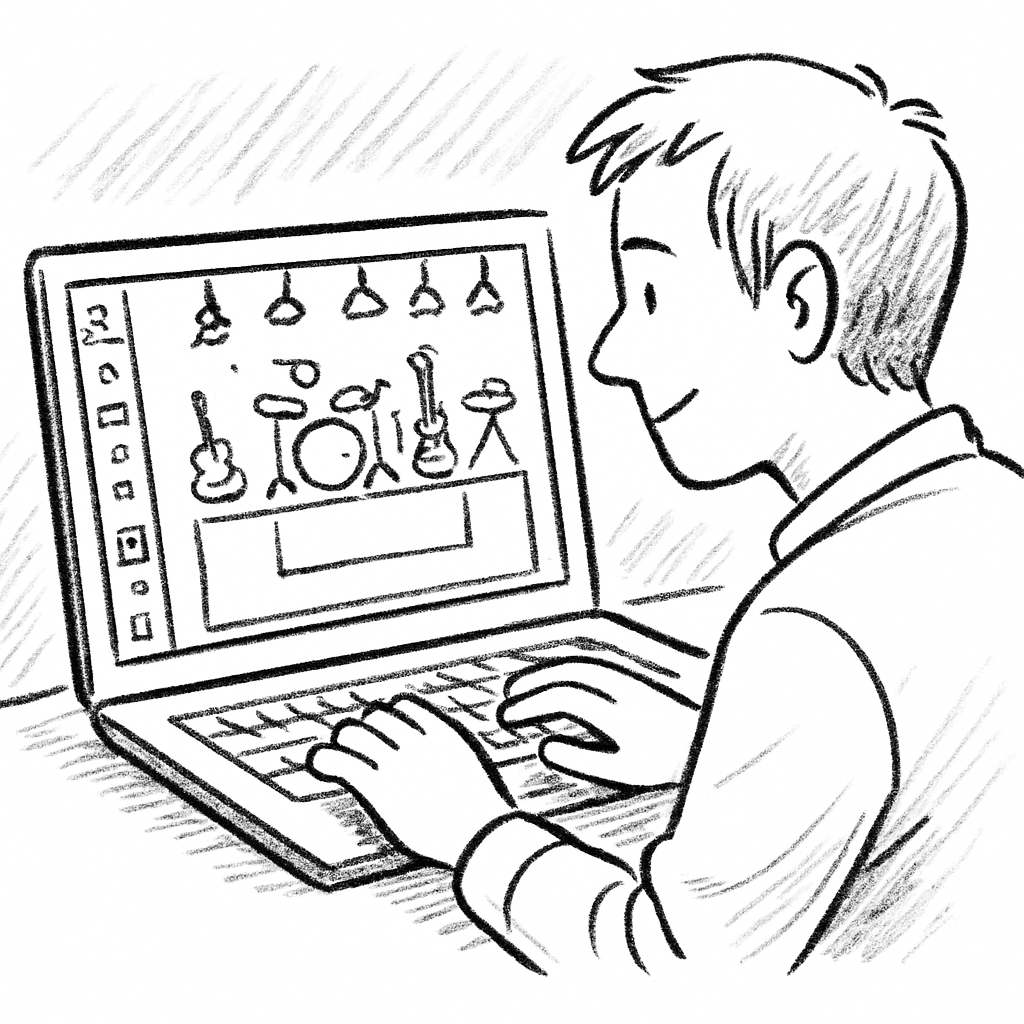
In short, the key to Step 1 is clarity: the more precise you are in identifying your needs, the less time you’ll waste adjusting the plan later. And don’t forget to consult Assistaix for technical support resources that can help you quickly resolve integration or sharing issues.
Step 2: Explore popular free options
You’ve already listed your needs, now it’s time to choose the tool that will really simplify your life.
You could get lost in an infinite number of software packages, but most technicians naturally turn to a few tried-and-tested nuggets.
1️⃣ LightStagePlot – the Cinod reference
If you’re already on Cinod, LightStagePlot is installed free of charge. It lets you drag and drop every microphone, instrument and projector directly onto the room grid. You can even import the 2D floor plan of your venue and transform it into a 3D view with just a few clicks.
The real plus? You can share the file with your team, add comments in real time, and everyone works on the same version. No e-mail attachments to get lost.
2️⃣ StagePlot Guru – version free
This little online tool offers an ultra-simple interface: add icons, reorganize, export to PDF. It’s perfect for quick reference when you don’t need the power of 3D.
One drawback: advanced options (CSV export, venue integration) are reserved for the paid version. But for a simple stage plan, the free version is more than sufficient.
3️⃣ Plotagon – an open-source alternative
Plotagon is totally free and works offline. You download the program, load your plan and start placing equipment. The advantage is the community, which shares templates and highly detailed icons.
Beware, the interface is a little dated, so allow a few minutes for learning. Once you get the hang of it, it’s very robust.
So how do you choose between these options without wasting time? Here’s a little checklist you can copy and paste into your notebook.
- Compatibility with existing drawings (DXF, PDF, PNG import).
- Opportunity to share a reading/writing link with the whole team.
- Real-time annotation function – indispensable for last-minute adjustments.
- Community support or documentation in French.
- Off-line availability if you need to work in the field.
By checking these boxes, you’ll quickly see which software fits your workflow. Technicians who already use LightStagePlot often stick with it because the integration with Cinod’s 360° virtual tour saves hours.
And if you need a little demo to visualize the process, here’s a video showing how to create a scene map in under five minutes.
Once you’ve seen the demo, open LightStagePlot, import your floor plan, add your microphones, then click on “Share”. You now have a living document that every technician can consult from their smartphone.
One last tip: always create a “backup” version before any major modification. A simple click on “Export” gives you a PDF that you can archive. That way, if you need to go back, it’s immediate.
In short, explore these three solutions, test them out for a short rehearsal, and choose the one that best suits your way of working. You’ve got nothing to lose, but you can save precious hours before the big day.
Step 3: Compare key features
You’ve tested three solutions, now you need to know which one really ticks the boxes that matter to you. We don’t want a table that looks like blah blah, but a real guide that helps you make an informed decision.
1️⃣ Create your own evaluation grid
Take a sheet of paper or an Excel spreadsheet and note down the criteria that speak most to you: importing plans, real-time sharing, annotations, mobile compatibility, and of course the learning curve. Assign yourself a weighting from 1 to 5 according to importance. Then rate each software from 1 to 5 for each criterion. You’ll get a total score that reveals the winner.
Tip: if you already have a 2D plan on Cinod, test the import first; this is often the decisive factor.
2️⃣ The criteria that really make the difference
Import & export drawings: LightStagePlot accepts DXF, PDF and PNG, while StagePlot Guru only supports PNG. Plotagon, on the other hand, only imports raster images, which can limit precision.
Real-time collaboration: LightStagePlot lets the whole team comment directly in the file, even from a smartphone. It’s the only one to offer a read-write link without the need for e-mail exchanges.
Annotations and layers: the ability to create “sound”, “light” and “security” layers avoids confusion on the big day. StagePlot Guru offers simple notes, but no layers.
And you, what feature keeps you awake the night before the show? Ask yourself, then compare scores.
3️⃣ Quick summary table
| Functionality | LightStagePlot | StagePlot Guru (free) | Plotagon |
|---|---|---|---|
| Import drawings (DXF, PDF, PNG) | ✔︎ | ✖︎ (PNG only) | ✖︎ (PNG only) |
| Real-time collaboration | ✔︎ (mobile & web) | ✖︎ (export PDF only) | ✖︎ (local only) |
| Layers & annotations | ✔︎ (multi-layer) | ✖︎ (plain text) | ✖︎ (no layers) |
This chart shows you at a glance where each tool stands. If you need precise import and instant collaboration, LightStagePlot is the obvious choice.
4️⃣ A concrete example: a jazz concert in a small venue
Let’s imagine you’re preparing a jazz quartet concert in a 150-seat hall. You need to place two instrument microphones, a vocal microphone and two amplifiers. Import the floor plan from Cinod, create a “sound” layer and drag and drop the icons. During the rehearsal, the sound engineer notices that the vocal microphone is too close to the projector. Using real-time feedback, he adds a note to the effect “move 30 cm to the right”. Everyone sees the change immediately, even the stage manager in the kitchen.
If you had used StagePlot Guru, you would have exported a PDF, e-mailed the file, then waited for the technician to re-open the PDF to annotate by hand – a process that wastes 10 to 15 minutes or more.
5️⃣ Expert tip: combine the best of both worlds
If your budget doesn’t allow you to use the premium version of a tool, start with the free version, then export your plan to LightStagePlot for real-time sharing. This trick works particularly well when you have several teams working remotely on the same project.
In fact, 10 Free Lighting Plot Software Options for Event Planners lists other alternatives that can serve as backups if your main software crashes in the middle of a setup.
6️⃣ Integrate automation to go further
Once you’ve finalized your plan, consider automating notifications: a simple webhook that sends the plan link to each technician as soon as a change is made. Solutions like Assistaix offer ready-to-use automations for booking confirmations, equipment checklists and deadline reminders. You save time, reduce oversights, and keep everyone in line.
So, which tool will you be testing today? Take your grid, write down the scores, and let the data guide you. You’ll soon see that the right free stage design software is a game-changer: less stress, more precision, and a team that works in true symbiosis.
Step 4: Test the interface and ease of use
You’ve spent hours filling in your free stage plan software, placing every microphone, every light, every cable. But before you say “I’ve got it”, you need to make sure that the tool won’t make you lose your head on the big day.
So how do you make sure that the interface is really intuitive and that getting to grips with it won’t become a nightmare? Let’s break it down together, step by step, like testing a new microphone before a concert.
1️⃣ Create an ultra-simple test scenario
Before diving into the real thing, open up a blank room – an empty rectangle, nothing more. Add three typical elements: a vocal microphone, a projector and a mixer. The aim? Simulate the most common task your team will be doing every night.
Take note of every click you need to make: open library, drag & drop, adjust rotation. If you count more than five actions to place a single microphone, that’s already a red flag.
2️⃣ Test navigation and drag & drop
Most free tools focus on drag-and-drop. Do it yourself: click, drag, release. Does the interface respond instantly, or does it lag? Do icons rotate when you rotate them, or do they remain frozen?
A good visual cueing system should display markers (grid, magnets) that lock into place without you having to manually adjust every millimeter. If you have to constantly fine-tune the position, the learning curve climbs.
3️⃣ Test collaboration in real time
Invite a colleague to connect to your plan. Ask them to move the projector from one side to the other while you add a comment. Do changes appear immediately on both screens? If the delay is several seconds, collaboration can become frustrating when the rehearsal is in full swing.
Also note whether the system offers clear notifications (“microphone moved”, “comment added”) or leaves you in the dark. A good collaborative experience should be transparent, like an instant message exchange.
4️⃣ Simulate D-Day with real constraints
Take your real floor plan (the one you imported from Cinod) and add constraints: deactivate electrical outlets, block off areas where cables are forbidden, create a “security” layer. Now try placing the same projector in this restricted area.
If the tool prevents you from placing the icon, or alerts you with a clear message, you’ve earned a usage point. If, on the other hand, it lets you place the object where it doesn’t belong, be prepared for unpleasant surprises on show day.
5️⃣ Collect feedback and iterate
Once the tests are complete, organize a short feedback session with your team. Ask them some simple questions: “What annoyed you most?”, “Which button could have been more visible?” Record the answers in a table.
Turn each remark into a concrete action: shorten a button label, activate the automatic docking function, add a keyboard shortcut. Re-open the plan, redo the same scenario and see if the score improves.
Bonus tip: if you’re looking for examples of 3D interfaces that still run smoothly even in the free version, take a look at software like Blender or SketchUp – they show that free doesn’t always mean slow , according to a comprehensive guide to free 3D tools.
In short, your test checklist should contain: number of clicks for a basic placement, drag-and-drop latency, speed of collaborative updating, management of security constraints, and user feedback. Pass this test before each new production run, and you’ll avoid the “I’ve forgotten how it works” syndrome when the lights should already be on.
You now have a clear method for validating that your free stage design software is really usable. Test, adjust, repeat – that’s the secret of technicians who leave nothing to chance.
Step 5: Integrate the software into your workflow
You’ve passed the testing stage, you’ve got a plan that makes sense, and now it’s time to make it talk to the rest of your production. This is where integration becomes the real driving force.
Think of the stage on D-Day as an orchestra: each musician follows his or her own score, but it’s the conductor who makes it all come together. Free stage design software plays this intermediary role between design, logistics and set-up.
1️⃣ Create a central hub
The first step is to designate a master file that the whole team uses. In LightStagePlot, for example, you can save your plan as a shareable link. Share this link in the dedicated Slack or Teams channel, and ask each department (sound, lighting, stage management) to add it to their favorites. That way, when someone opens the plan, they see exactly the same version as everyone else.
Just a reminder: avoid duplicating the file every time you make a small change, otherwise you’ll end up with 12 different versions competing for the truth.
2️⃣ Synchronize with your rehearsal schedule
The software doesn’t have to stay locked in a tab. Connect it to your scheduling tool – be it a simple Google Calendar or Cinod’s integrated LightStagePlot module. Create a “Stage Plot Update” event 48 hours before each rehearsal. When the date arrives, the system automatically sends a reminder with the plan link and the points to be checked.
Sounds simple, but we often see technicians waste an hour looking for the right file because they don’t have a single point of entry.
3️⃣ Automate change notifications
Every time a technician moves a fixture or adjusts the position of a microphone, the software can trigger a webhook that notifies the rest of the team. You can set this up with a service like Zapier or Integromat, but even LightStagePlot’s native function is sufficient: choose “Send e-mail” whenever a comment is added. This way, the sound engineer receives a ping as soon as the set changes, and the stage manager knows immediately if a feed point has been modified.
In practice, I’ve seen a team avoid a jammed cable problem simply because the technician received a “microphone out of place, check plug” alert just before assembly.
4️⃣ Integrate safety checklists
Before validating the plan, run each element through your safety checklist. In the software, add a checkbox for “Maximum load verified”, “Cable route cleared” and “Anchoring confirmed”. When all boxes are checked, the status changes to “Ready for D-Day”. This provides documentary proof that every constraint has been reviewed.
This little gesture avoids last-minute surprises and gives you a strong argument in the event of an audit or security check.
5️⃣ Train your team and create an in-house mini-guide
Even free software is useless if nobody knows how to use it. Organize a 15-minute session where you demonstrate keyboard shortcuts, how to add layers (sound, light, security) and how to leave comments. Take notes and share them on your drive under the title “Stage plot quick guide – version 2025”. Encourage new users to read the guide before each project.
You’ll be amazed at how many recurring errors disappear once everyone has mastered the basics.
6️⃣ Re-evaluate and iterate each tour
After each show, set aside 10 minutes in your post-mortem schedule to ask: “What went well in the workflow?” and “What slowed down the process?”. Record the feedback in a table and adjust your software configuration (adding new fields, modifying notifications, etc.). This continuous improvement loop turns your free software into a true strategic asset.
In short, integration isn’t a one-off event, it’s a habit: every update, every share, every alert is part of an ecosystem that makes your production run more smoothly.
Additional resources
Once you’ve integrated free scene plan software into your routine, there’s still a small bag of tools that can really take your workflow to the next level. You don’t need to buy everything, just know the right places to look.
Practical guides to download
At Cinod, we offer ultra-concise PDF sheets – for example, a sample safety checklist to be ticked off before each rehearsal. It takes just two minutes to print out, and avoids last-minute oversights. You can save them in your drive and update them with each tour.
Another document worth checking out is the “Plot Stage Quick Guide”, updated for 2025. It includes keyboard shortcuts, layer tips and good commentary practices. We recommend it to every new technician who joins your team.
Communities and forums
French-speaking groups on social networks (Facebook, Discord) are often the first place where technicians share custom icons or automation scripts. Joining a community gives you access to answers in real time, and above all to concrete feedback that you won’t find anywhere else.
If you already have a specific problem – “How do I prevent the microphone from jamming on the truss?” – simply type your question in the dedicated thread. You’ll see that most of the answers are based on the same free software you’re using, so they’re directly applicable.
Webinars and online workshops
Every quarter, Cinod hosts a free webinar showing how to import a 2D plan, create “sound” and “light” layers, and automate notifications. Sign up, note the timestamps, then apply the steps to your project. It’s like a little training at no cost, and you leave with screenshots ready to paste into your in-house guide.
What’s more, these sessions are recorded. You can keep them in your training library and share them with technicians who were unable to attend live.
Additional free tools
For location shots, a simple smartphone is all you need; but a little exposure adjustment guide (available from consumer photography sites) will help you get sharp images, even in dark areas of the backstage. Combine these images with your scene plan and you’ve got a complete file for everyone to see.
Finally, consider creating a shared spreadsheet (Google Sheets or similar) where each member logs major changes to the plan. A “modification date” field and a “security validation” checkbox are enough to keep everyone in sync.
In short, these complementary resources – PDF files, communities, webinars and free capture tools – form a small ecosystem that makes your free stage design software truly indestructible. You’ve got everything you need, now all you have to do is put it into practice.
Conclusion
After all this overview, you’ll surely feel that the chaos of technical scouting can finally be transformed into a fluid routine.
The free stage design software isn’t just an app: it’s the thread that connects every technician, every instrument and every power outlet, even when the venue changes scenery at the last minute.
You’ve seen how to choose, test, compare and integrate the tool into your workflow. Now the real question is: what are you going to implement tomorrow?
Start by creating a master plan, share it via a single link and enable change notifications. Then use a shared table to record each change with date and security validation – this avoids misunderstandings on the day.
A little tip: use a shared table to record each modification with the date and security validation – this avoids misunderstandings on the big day.
By applying these little habits, you’ll save time, reduce stress and give your team total visibility, as if you had a dedicated virtual assistant.
So, are you ready to leave paper behind and make every production a smooth success? Go ahead, test the software and see the difference from the very first rehearsal.
FAQ
You’ve already gone through all the steps, but doubts often remain. Here are the answers to the most frequently asked questions about the free stage design software, so you can move forward with confidence.
What’s the best free stage design software for a small concert?
For a small venue, simplicity is the name of the game. LightStagePlot, offered by Cinod, features intuitive drag & drop, the ability to add layers and instant sharing via a link. You don’t need advanced features like CSV export; the key is to quickly visualize who’s where, and to be able to adjust in a few clicks. In tests, most teams report less friction and more fluidity.
How to share a free stage plan with the whole team in real time?
The key is the shareable link. Once you’ve saved your plan, generate a unique URL and copy it into your crew’s Slack or Teams channel. Each member opens the same file, adds comments or moves an item, and the changes appear immediately for everyone. Enable e-mail or push notifications, so no one misses out on the last-minute update.
Can I import my existing 2D plan into the free software?
Yes, most free solutions accept the most common formats: PDF, PNG or DXF. Import your pre-measured floor plan, align it with the software’s grid, then start placing your microphones, projectors and mixing desks. The advantage of an accurate import is that you don’t have to start from scratch, and critical distances remain accurate, so there are no surprises on the big day.
How do you manage last-minute changes without losing the previous version?
Use the “save version” function or export a reference PDF on a regular basis. Before each major change, create a copy of the file and rename it with the date (e.g.: stage-plot_2025-12-06). This way, if a change doesn’t work, you can revert to the previous version with a single click. This habit reduces stress and avoids unnecessary to-ing and fro-ing.
What are the best practices for securing a free stage plan?
Start by ticking the safety boxes: maximum suspension load, distances between cables and power sources, and forbidden zones. Integrate these constraints as “safety” layers that everyone can activate. Add a validation field where each manager confirms that he/she has reviewed his/her segment. This traceability creates documentary proof that reassures stage managers and controllers.
Does the free software work offline during on-site surveys?
Many solutions offer a limited offline mode: you load the plan before leaving the office, then work without a connection. Changes remain local until you return to the network, when they are automatically synchronized. Check that your application has an export/import function, so that you can save your work even without the Internet, especially if you’re on tour in remote locations.


